According to Microsoft, Power Apps development reduces development time by 50% and yields a 206% return on investment.
For those looking to automate their tedious task, save costs, and boost productivity, Microsoft Power Apps is a way forward.
This write-up will discuss how anyone in your organization can create app products without writing a single line of code.
Curious about the cost of building your Power App?
Use our free cost calculator for an instant estimate based on your needs.
Table Of Contents
How to Build a Power App?
Getting started with power development doesn’t require you to be a tech expert.
In fact, anyone in your organization can create powerful, custom apps without needing to code.
As an experienced mobile app development company, we have laid out a simple yet straightforward guide to create a PowerApp.
Here is how to get started with it:
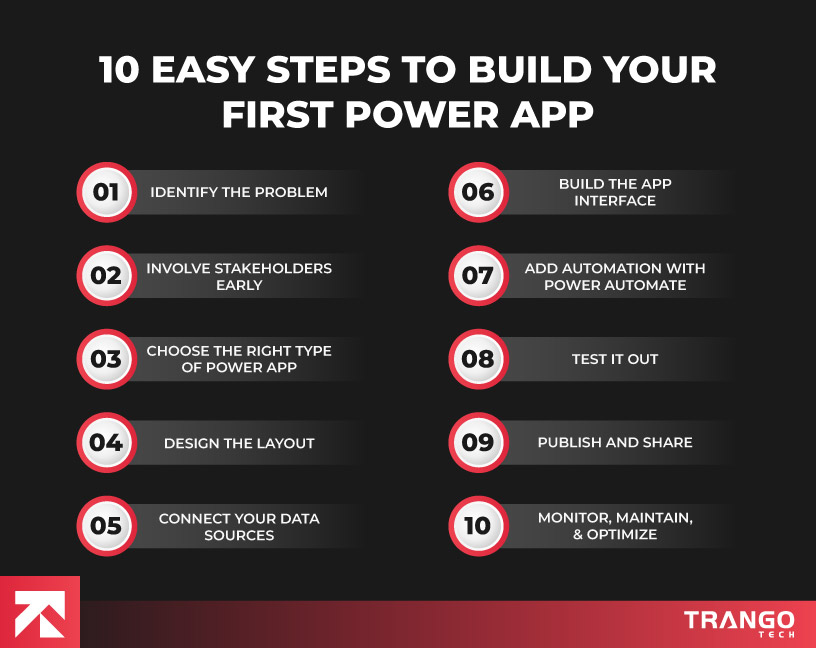
1. Identify the Problem
Before getting hands-on with power app development, ask yourself a question: What problem are you trying to solve?
Get in touch with your team to figure out what specific tasks are messy, take too long, and frustrate you.
So basically, you are here looking for bottlenecks like inventory spreadsheets that go out of sync, HR paperwork that gets lost, or service requests that no one tracks properly.
For instance, your field team writes down equipment maintenance requests on paper and hands them in later.
It’s slow, messy, and things fall through the cracks.
The best way to solve any problem is to remove its cause.
Once you know the exact problem, the job will be less complicated to build the right Power Apps development solution.
2. Involve Stakeholders Early
Now that you have an issue at hand, solve the problem. Bring your target audience in the loop, including those who will be using this app or will be affected by it.
They can be anyone, a team lead, department heads, IT staff, and even a support team members.
You can better assess their needs by following these questions:
What features would make their work easier?
What’s not working well with the current process?
What absolutely must be included?
The early involvement of target users will help you ensure the app meets real needs and gains early buy-in.
3. Choose the Right Type of Power App
There are currently three main types of Power Apps: Canva apps, model-driven apps, and portals.
All of them have a specific purpose to serve. You should choose the one that best aligns with your business interests.
The right choice is gonna save you a lot of time, effort, and costs.
Here’s a quick comparison to help you decide:
Type of App
Best For
Design Control
User Audience
Canvas App
Simple, highly customized apps
Full control
Internal users
Model-Driven App
Complex, data-centric apps using structured data
Limited (auto-generated)
Internal users
Portals
Public-facing websites or secure access for external users
Moderate (web-focused)
External users (e.g., customers, vendors)
If you are just starting out and want something simple and visual, go with a Canvas app.
To determine the best choice further, it is wise to contact a Microsoft Power Apps development company.
4. Design the Layout
It’s time to plan out how users will work with your app product.
You can start by considering an overall UI/UX, like what users see and do the moment they open the app.
How will your home screen look? What will its summary dashboard, recent entries, or action buttons look like?
Outline all the key screens your app will need, such as forms for entering data, pages to view or edit information, and any filters or search functions.
You can use visual tools like Figma or just draw it out on paper or a whiteboard.
If you prefer a head start, Microsoft 365 Power Apps also provides off-the-shelf templates you can customize.
The goal here isn’t perfection—just a clear structure so you’re not guessing later.
5. Connect Your Data Sources
Your app is only as powerful as the data it works with.
Microsoft Power Apps database, similarly to top ELT tools, makes it easy to work with a wide variety of sources rather than being locked into just one platform.
Some of the most commonly used options include:
Excel files stored in OneDrive or SharePoint
Microsoft Dataverse (Power Platform’s built-in, scalable database)
SQL Server and Azure SQL databases
SharePoint lists for team collaboration
Google Sheets, Salesforce, and hundreds of others
To connect your data in Power Apps Studio:
Open your app in Power Apps Studio.
On the left panel, click on the “Data” tab (it looks like a database icon).
Click “+ Add data”.
Choose your data source from the list (e.g., SharePoint, SQL Server, Excel).
Authenticate your account if prompted.
Browse and select the specific table, list, or file you want to use.
When your data is connected, start building forms, galleries, and screens that pull in real-time information from your chosen source.
If you have plans to scale your app, need robust security, or want to enable role-based access, Microsoft Dataverse is your best bet.
It’s designed to handle enterprise-level data and integrates smoothly with the Microsoft app development software.
6. Build the App Interface (UI)
Here, you will use the Power Apps tool to drag and drop elements onto your canvas.
Just start by adding the essential building blocks like data entry forms, galleries for listing items, buttons, labels, drop-downs, and more.
You can tweak how these elements behave using Power Fx—a simple, Excel-style formula language.
Besides that, it is necessary to ensure you have a clutter-free design that helps your users focus on what matters.
7. Add Automation with Power Automate
If you want to let your app product work automatically for tedious tasks, Power Apps could help you with this.
These apps allow you to add automation features that act as a smart assistant to deal with repetitive tasks. As a result, you save a lot and make minimal errors.
You have to create automated workflows that run in the background and are triggered by events or user actions in your app.
Instead of hectic coding, your Power Apps development company will have to set up a flow using a simple, visual interface.
There are specific purposes for automations like:
Send an email when a form is submitted.
Create a new item in SharePoint when a request is approved.
Notify someone on Microsoft Teams when a task is assigned.
It works with hundreds of services and helps take manual work off your plate.
For beginners, there is a Power Automate gallery with tons of ready-made flows available.
8. Test It Out
It’s paramount to meticulously test your power app before rolling it out to the team or organization.
Your core purpose here is to check not just for bugs, but for the overall user experience.
Utilize the preview feature in the Power App development platform, which lets you interact with the app as if you were a real user.
Experts go the extra mile to test the product on multiple devices, including desktop computers, tablets, and mobile phones.
This helps catch layout issues or usability problems that only appear on certain screen sizes.
If possible, let your target user use this and understand:
Are they confused at any point?
Do they know what to do next?
Does the app crash, freeze, or give weird results?
Use this input to fix any errors and fine-tune your Power App performance.
9. Publish and Share the App
Once testing is done and dusted, it’s time to publish it on the intended platform.
It’s quite easy to publish your app, just go to File > Save, then click Publish to make your latest version live.
Share the app with users via:
Microsoft Teams
A direct app link
Embedding in a SharePoint site
Don’t forget to set user permissions before sharing—decide who can use the app, who can edit it, and who should only view certain parts.
Getting this right ensures your data stays secure and your users have the necessary access without confusion.
Bonus Read: “Check out 20+ SaaS app ideas for 2025 for startups and enterprises”
10. Monitor, Maintain, and Optimize
A Power App is never truly “done.”
Just like your business, your Power App should keep growing and adapting over time.
You are supposed to keep it in check and perform regular maintenance in order to keep it relevant, secure, and valuable.
There can be different reasons for enhancement, like your team might need new screens, updated fields, or a tweaked workflow based on the new process.
You can integrate it with new tools your organization starts using. So there is always a need for improvement over time as your business grows.
It is necessary to have a strong eye to ensure the security aspects of the app.
You must update permissions and tighten access controls to tackle security changes or new threats that emerge.
Last but not least, keep your app clean and clear to ensure your app delivers real value.
Got an idea for an app but not sure where to begin?
Our team can guide you through the entire Power App development process.
Key Benefits of Microsoft 365 Power Apps
Businesses these days are under constant pressure to do more with less—less time, fewer resources, and tighter budgets.
To solve these real problems, they are turning their heads to Power Apps.
These apps’ product helps them to move faster, reduce overhead, and build tailored digital tools without the usual tech headaches.
According to a report, around 25 million users use Microsoft Power Apps monthly to create modern applications. Why not you?
If you are truly serious about scaling operations and outperforming your competitors, Power Apps development solutions are definitely worth your attention.
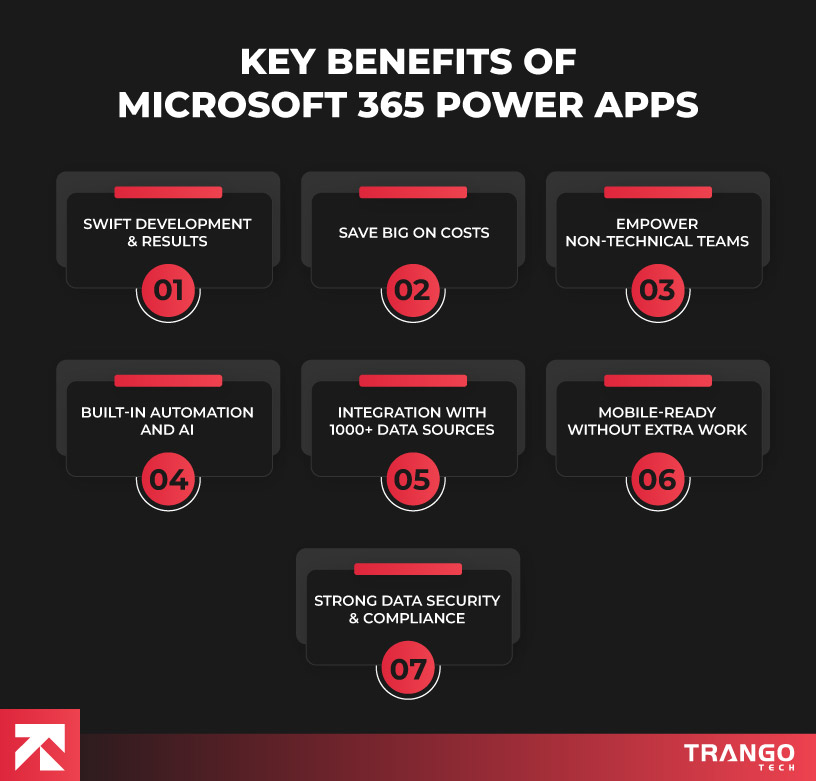
Swift Development & Results
Conventional app development methods are quite time-consuming, requiring a complete team of developers, testers, and project managers. Businesses are now combining Power Apps with Microsoft Dynamics 365 to streamline app creation while connecting directly to enterprise-level CRM and ERP data.
In contrast, Microsoft Dynamics Power Apps flips that model on its head.
With its low-code environment, you can build functional, business-ready applications in just a few days—or even hours.
Save Big on Costs
Hiring professionals or an expert Power Apps development company can cost a fortune.
Microsoft 365 Power Apps allows less tech-savvy individuals to develop apps with minimal involvement from the IT department.
This reduces your reliance on outside vendors and lowers your overall development costs.
Since most businesses already have Microsoft 365, there is a solid chance you will have access to Power Apps.
Empower Non-Technical Teams
What if your HR team can independently create their own onboarding tracker, or a business operation manager within your firm can prepare a daily safety checklist app?.
Isn’t that intriguing? Power apps put the power of innovation and creativity directly into the hands of your employees.
This, as a result, speeds up internal projects and boosts productivity across departments in your organization.
Built-In Automation and AI
Power Apps software is backed by AI technology.
They set up automated workflows—like sending email alerts, generating reports, and moving
data between systems.
AI Builder allows you to add smart features like invoice scanning, form recognition, sentiment analysis, or even predictive insights.
In short, you’re not just creating apps—you’re building innovative, proactive business tools that work for you.
Integration with 1000+ Data Sources
Power Apps easily connects with over 1000+ data sources, including Microsoft services like Excel, SharePoint, Teams, Outlook, and Dataverse, as well as third-party platforms like Salesforce, Google Drive, Dropbox, SQL Server, and more.
This means you can build apps that pull data from multiple systems and bring everything together in one intuitive interface, without complicated back-end development.
Mobile-Ready Without Extra Work
There are currently billions of mobile app users globally, which makes it a huge slice of the market.
Microsoft’s development platform automatically makes your app mobile-responsive. This means it will work impeccably on smartphones and tablets as it does on desktops.
For businesses with on-the-go teams—like field service technicians, delivery drivers, or sales reps—this is a huge advantage.
There’s no need to create separate mobile and desktop versions of your apps. One build, multiple platforms—ready to go.
Strong Data Security & Compliance
According to Help Net Security, hackers compromise 4,080 records every single minute in data breaches.
Power Apps comes with the backing of Microsoft’s enterprise-level security and compliance infrastructure.
Role-based access controls, multi-factor authentication, and data loss prevention policies are built right in.
Plus, since Power Apps is hosted in the Microsoft Azure cloud, it complies with global standards like GDPR, HIPAA, and ISO.
You can innovate without worrying about compromising sensitive data.
Power Apps is trusted by 86% of Fortune 500 companies—why not you?
We have over 20+ years of tech experience in design to deployment.
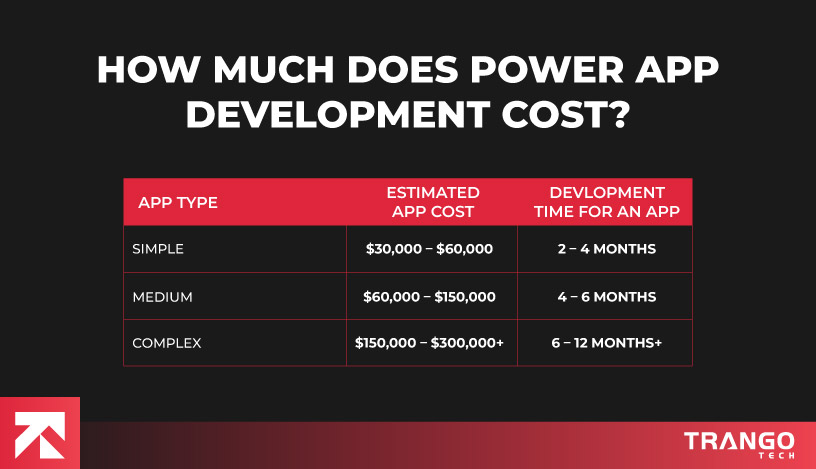
How Much Does Power App Development Cost?
On average, a power app development cost typically ranges from $ 20,000 to $ 80,000 or more. It depends on several factors, including the complexity of the app, the features you need, and the chosen platform.
For instance, for a simple app with basic features, the development cost should be relatively low, around a few thousand dollars.
At the same time, complex application costs climb to tens of thousands of dollars, especially if you hire reliable MVP development companies.
Here is a quick breakdown of it:
Cost Category
Estimated Costs
Power Apps Licensing
Per App Plan: $5/user/app/month
Per User Plan: $20/user/month
Office 365: Included (limited features)
Low-Code/No-Code Development
Low cost, mainly the time spent by your team
Custom Development
$100 – $200 per hour
Consulting and Support
$100 – $250 per hour
Ongoing Maintenance
10-20% of the initial development cost annually
Integrations
Additional cost based on complexity
Storage
Additional cost depending on usage
This breakdown shows the key costs you’ll encounter when building and maintaining a Power App.
The exact cost of your Power Apps development project will depend on your specific requirements and the approach you choose.
A well-designed Power App can deliver real value, solve business problems, and boost productivity across teams.
Instead of packing your app with generic features, it’s important to focus on the ones that truly make a difference.
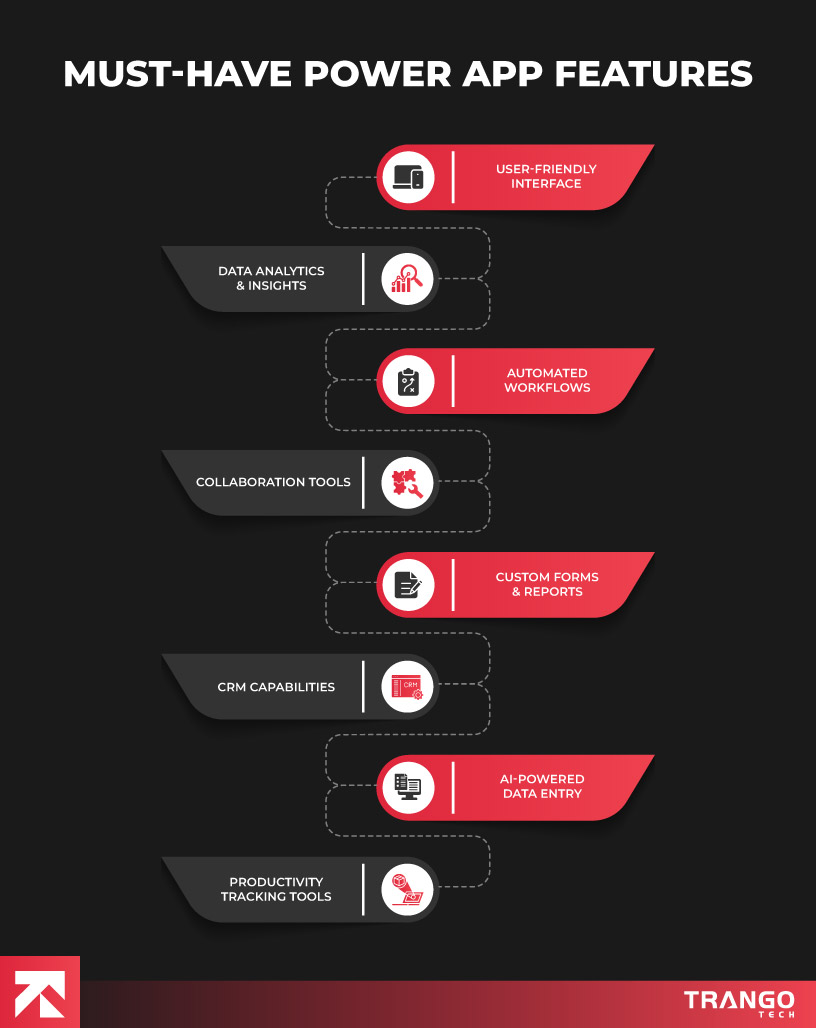
We have discussed below ten core features that you don’t want to miss in your next Power Apps development project:
User-Friendly Interface
A clean, intuitive interface ensures users can navigate easily without needing technical knowledge.
Buttons, menus, and screens should be clearly labeled and logically placed.
When users know exactly where to go and what to do, adoption rates go up, and training time goes down.
Data Analytics & Insights
Your power app should integrate robust analytics features that let users instantly generate reports, visualize key trends, and track performance.
It will help managers to make informed decisions by turning raw data into actionable insights.
Moreover, they receive hands-on opportunities for improvement and scalability over time.
Automated Workflows
With Power Apps, your team should be able to replace a manual process with automated workflows.
It encompasses tasks like approvals, notifications, data collection, and reminders.
By doing so, you will save a lot of time, reduce the likelihood of errors, and maintain uninterrupted business operations.
Collaboration Tools
There should be real-time communication features that bring your team together, no matter where they’re located.
Add chat support, video conferencing capabilities, shared file access, and task assignments.
This will help power app users discuss, delegate, and deliver — all within the same platform.
Custom Forms & Reports
Give app users the flexibility to build and modify forms, reports, and workflows that match their exact business needs.
It is about ensuring your app adapts to your processes, not the other way around, and can evolve as your business grows.
CRM Capabilities
For Power Apps, having a Customer Relationship Management (CRM) is non-negotiable.
CRM helps users manage leads, schedule follow-ups, record conversations, and monitor the sales pipeline.
With everything in one place, they can build stronger client relationships and close deals faster.
AI-Powered Data Entry
Your app should leverage artificial intelligence technology to make the tedious data entry process easy.
There are several tools available for this purpose, like optical character recognition (OCR), predictive text, or auto-fill.
They dramatically reduce typing time, minimize errors, and improve overall data quality.
If you’re exploring ways to present or demo this functionality clearly, using an ai ppt can simplify concepts for non-technical stakeholders. Data entry through AI becomes useful when you have large volumes of data to collect.
Productivity Tracking Tools
Power apps should help teams stay on top of their game with built-in productivity tools.
It has features like time tracking, task deadlines, user activity logs, and progress indicators.
These insights allow managers to optimize workflows and ensure everyone stays focused and productive.
Read more: Check out our blog on the 25 Power Apps Examples & Use Cases to get inspired by real-world solutions businesses are using now.
Power Apps Development Do’s and Don’ts
Building a Power App doesn’t have to be overwhelming.
In fact, the most effective apps are often the simplest ones—designed with purpose, not perfection.
Here are some key tips and best practices to keep in mind as you dive into Power Apps development:
Do’s
Don’ts
Start with a small goal
Don’t try to fix everything at once
Keep things simple
Don’t clutter your app
Set up strong security
Don’t give full access to everyone
Use Microsoft’s templates and tools
Don’t build everything from scratch
Train your team to build and manage apps
Don’t rely only on IT
Test your app with real users
Don’t skip testing
Keep your app updated
Don’t forget about it after launch
Prioritize user experience
Don’t ignore feedback from users
Plan for scalability
Don’t overlook future growth needs
Build Your Next with Power App With Trango Tech!
Not every business has the time (or budget) to build a full-blown custom app from scratch.
But that doesn’t mean you have to stick with spreadsheets, emails, and sticky notes forever.
You don’t need to be a developer to build a Power App that makes life easier at work.
With just a bit of time and the right idea, you can create something useful, flexible, and totally tailored to your business.
If you ever get stuck or are expecting to build something advanced, you can invest in our Power Apps development company.
Let’s make it happen — get in touch with our tech experts.
Frequently Asked Questions
1. What is Power Apps development?
Power Apps development is all about building custom business apps using Microsoft’s low-code platform, Power Apps. It helps you create apps quickly, often without writing much (or any) code.
2. What is an example of Power Apps?
An Employee Leave Request App is a perfect example of Power Apps. These digital products allow employees to submit leave requests that are automatically routed to the appropriate managers for approval.
3. What are the three types of Power Apps?
Canvas Apps offer full design control with drag-and-drop customization. Model-Driven Apps generate interfaces based on your data and business rules. Portal Apps allow external users to securely access and interact with your data through a branded web portal.
4. Does Power Apps require coding?
Not at all! You can build most apps with drag-and-drop tools and simple Excel-style formulas. If you want to add more advanced features, a little coding knowledge helps.
5. What does a Power Apps developer do?
Power Apps development experts create app products that help businesses run more smoothly. They design clean interfaces, set up automated workflows, and connect the app to various data sources in order to ensure everything runs securely and efficiently.
6. What programming language is used for Power Apps?
Power Apps primarily uses Power Fx, a formula-based language that resembles Excel. For more advanced customizations, app developers sometimes use JavaScript, HTML, or even connect to external services.
Daniyal is a passionate content writer & editor with 3+ years of experience crafting SEO-friendly blogs, web copies, and marketing content for an mobile app development company. He loves turning ideas into words that connect, engage, and deliver value. Currently working as a Senior Content Writer at Trango Tech, Daniyal holds a bachelor's degree in English Language and Literature.